Do You Need a Gimbal for iPhone Video? Action Mode vs a Real Gimbal
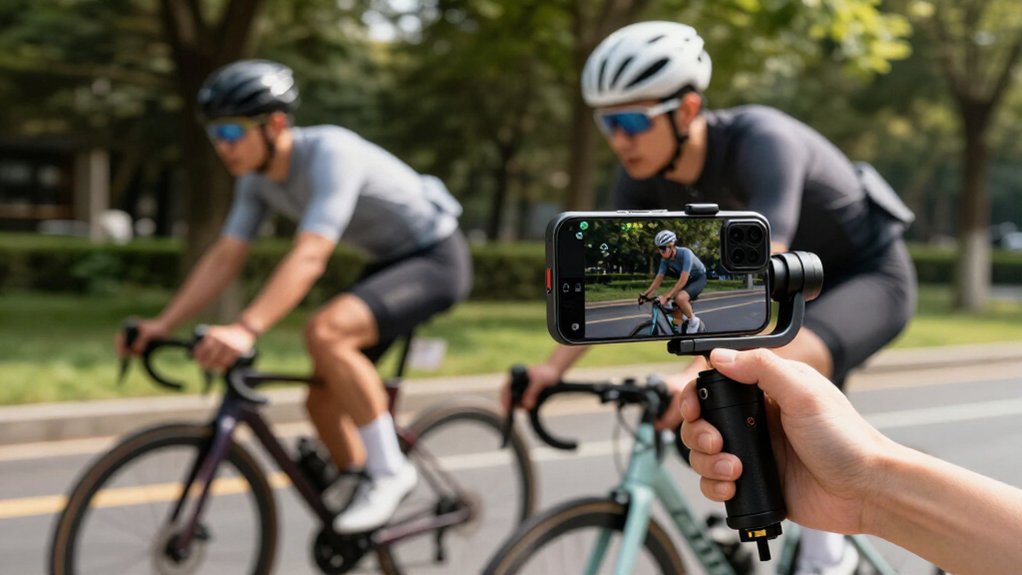
You don’t need a gimbal for every iPhone video: Action Mode is faster for spontaneous clips, while a three-axis gimbal gives you steadier horizons, smoother pans, and Follow, Pan, or FPV control.
Action Mode can crop or warp footage and leave bounce during running; a gimbal takes minutes to mount, balance, pair, and calibrate.
In low light, it may preserve cleaner detail, but can’t add light.
Compare real use cases to see which trade-offs matter.
Action Mode vs. Gimbal
Action Mode is often enough when you’re running, biking, or crossing rough ground, where strong electronic stabilization smooths forward motion and reduces rolling-shutter distortion.
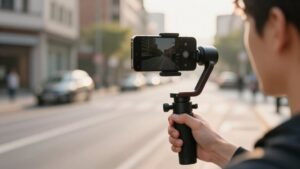
A real iPhone gimbal adds 3-axis motorized stabilization across yaw, pitch, and roll. Its sensors and motors correct movement in real time, helping you keep the horizon level and framing steady as you walk, pan, or track a subject. For slow, deliberate shots, that mechanical control usually looks more natural than Action Mode’s digital correction.
You can choose Follow, Pan, or FPV modes, and use AI face or object tracking to hold composition when you’re filming alone. During direction changes or longer takes, a balanced gimbal can counter small movements more consistently, while Action Mode often favors quick, forward-moving capture.
iPhone Action Mode Limitations
Where does iPhone Action Mode fall short? Its digital stabilization excels when you walk or run, but it can make deliberate pans and subject follows look locked-in rather than cinematic. A three-axis gimbal preserves a natural camera path as you pan.
Action Mode may crop image to control movement, reducing your field of view. Wide shots or landscape reveals can lose breadth; a gimbal can keep the full composition while smoothing your movement.
Fast pans and tracking aren’t flawless: digital corrections can leave micro-jitters or warped edges. Action Mode gives you fewer ways to direct movement than gimbal apps, which may offer Follow, Pan, or FPV modes and subject tracking. Use it for handheld action; choose a gimbal when framing and controlled motion matter.
Low-Light Video Quality
In low light, a gimbal can help your iPhone capture cleaner video by keeping the frame steady without relying as heavily on Action Mode’s aggressive stabilization and processing, which can cost fine detail. A three-axis gimbal lets you hold still enough to limit shake-related blur and preserve cleaner edges on faces, signs, and distant lights.
Steadier framing can also reduce brightness breathing as focus and metering adjust less often, while helping face or object tracking stay centered. It won’t create light, but it can avoid Action Mode’s detail tradeoff.
| Method | Low-light effect |
|---|---|
| Action Mode | Steady, but processing may soften detail |
| Gimbal | Fewer shake artifacts; cleaner 4K edges |
| Either | Stability won’t brighten a dark scene |
Walking vs. Running Footage
When you walk, Action Mode may steady your iPhone enough, but a gimbal better controls pans and tilts across three axes. Running exposes Action Mode’s limits: cropping, warping, or delayed tracking can make footage feel less fluid, while a motorized gimbal keeps movement smoother.
At 4K, you’ll spot micro-shakes more easily, so a gimbal usually gives you cleaner running shots.
Walking Stability
Walking is where a gimbal makes the clearest difference: its three-axis motors counter small up-and-down and side-to-side hand movements that iPhone stabilization can’t fully remove, giving footage a smooth, floaty look. With Action Mode or standard optical/electronic stabilization, you can reduce broad camera movement, but your steps still leave residual vertical bounce and lateral drift.
A gimbal physically reorients the phone, so follow shots look composed. Set Follow for a path, or lock the heading when you want the frame to hold steady. You’ll notice the difference on longer takes. Before buying, check payload capacity against your cased iPhone and any lens, since excess weight can strain motors and weaken correction. For ordinary walking, that mechanical control is where a gimbal earns its size.
Running Shake Control
Running exposes the limits of phone stabilization: its harder, faster impacts and sudden turns can leave jitter even when Action Mode is on.
When you’re walking, Action Mode can reduce some micro-shakes, but a three-axis gimbal uses motors to counter movement and keep pans and tilts consistent. Running adds stronger vibrations, so direction changes disturb framing.
Action Mode can make footage look sharper yet less cinematic as processing trades away detail. A gimbal mechanically steadies the phone, preserving stable framing for vlog-style shots.
Keep your phone aimed at your subject rather than swinging it with each stride; a gimbal can track steadily, especially with face or object tracking. Choose Action Mode for spontaneous clips; a gimbal for repeatable running shots with controlled, cinematic motion.
Action Mode Limits
A gimbal’s advantage becomes clearer as your pace changes: Action Mode can reduce walking blur, but it won’t eliminate micro-shakes or jitter from quick turns.
When you start running, its correction has to work harder. The result may look smooth but less natural, with visible warping or tighter cropping as software keeps the subject centered.
At 4K, detail doesn’t prevent edges from swimming around your subject: digital re-centering can create frame-to-frame inconsistencies. Fast horizontal pans and quick steps can also produce rolling distortions, especially when direction changes abruptly. If you’re filming a walk, Action Mode may be enough for clips.
For running sequences, inspect the edges and background, not just the subject. The more movement, the more apparent those digital trade-offs become.
Gimbal Movement Advantage
At walking speed, iPhone Handheld stabilization can keep footage mostly steady, but a three-axis gimbal’s motors counter small shakes that still show up during slow steps. You may notice less frame drift on a walk, yet your phone’s algorithms can struggle when you run: larger, faster head-bob and vibration can overwhelm them.
A gimbal’s motors respond in real time, keeping footage noticeably smoother and more cinematic. Its gyroscope and follow modes help limit horizon tilt and jumpy pans as your pace accelerates. That matters when you’re tracking forward or keeping your face or a subject centered continuously.
For stable horizontal pans, walking may need little correction; running exposes the difference quickly. A gimbal won’t erase every jolt, but it keeps your framing more consistent.
Setup Time and Convenience
You can start Action Mode almost immediately in the Camera app, though it can’t match a gimbal’s real-time three-axis stabilization. A gimbal takes a few extra minutes to mount and balance your iPhone, then you’ll pair it with the app, calibrate, and select a mode.
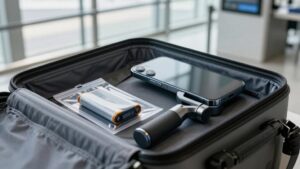
Its foldable design suits travel, and if you’re filming while walking for extended periods, that setup can save effort by reducing micro-shakes.
Quick Phone Setup
Once you’ve balanced your iPhone in the clamp, power on the gimbal and run its in-app calibration before filming to reduce startup wobble and steady Follow or Pan movements.
Connecting your iPhone through the dedicated app gives you quick access to tracking and control modes, so you can choose a shot without digging through menus. A gimbal takes a few deliberate setup actions, but folding and deploying it takes seconds; that makes it practical to carry and start filming without hauling heavier camera gear.
Once it’s ready, you can switch shot modes quickly and maintain consistent framing as you move. By contrast, Action mode requires no separate stabilizer or app connection, so it’s faster when you want to record immediately. A gimbal earns its setup time when you need selectable tracking, controlled pans, or repeatable movement. For casual clips, the phone’s built-in stabilization may be the more convenient choice when time is tight, too.
Gimbal Balancing Steps
Before choosing a shot mode, balance the iPhone with its case and any clip-on lenses secured; the added weight can otherwise strain the motors or throw off stabilization. Set the gimbal on a flat surface, then slide or pivot its arm until the phone stays level when you release it. Do this before powering on: a balanced load asks less of the motors.
Next, run the gimbal’s in-app calibration so its sensors align for smoother stabilization. Finish with a Follow-mode test; if the phone drifts, adjust the arm and test again. This takes more hands-on setup than tapping Action mode on your iPhone, but once balanced, the gimbal can deliver controlled movement without relying on the phone’s built-in stabilization.
Build these checks into setup after changing accessories.
App Pairing Time
A typical iPhone gimbal takes only a few minutes to set up: mount and balance the phone, power on the stabilizer, then connect to its app over Bluetooth and run calibration. Afterward, choose Follow, Pan, or FPV and adjust sensitivity, tailoring the gimbal’s response. Action Mode can stabilize footage without pairing, saving setup time, but its automatic behavior may feel less controllable.
The gimbal’s brief, repeatable setup may take less time than repairing shaky footage in post. Pairing and calibration add predictable steps; familiarity with your app makes them repeatable. Action Mode skips pairing, but trades deliberate mode selection for automatic processing. For occasional clips, fewer setup steps may matter; repeated filming can make a consistent procedure easier to budget than fixing clips later.
Ready-to-Shoot Convenience
Pairing is only part of the setup: with a gimbal, you still need to secure and balance your iPhone, then power on the stabilizer and follow the app’s quick calibration.
That routine adds a brief step before you shoot, unlike Action Mode, which you can enable in the Camera app and use immediately. But the gimbal’s setup buys control: you can choose Follow, Pan, or FPV to match how you move. With supported AI face or object tracking, you can start recording and stay framed with less manual steering than you get from Action Mode.
Action Mode usually smooths footage, but fast walking and complex pans can still reveal micro-shakes. Once you’ve balanced the phone, a folded travel-friendly gimbal gives repeatable steadiness, so you’re less reliant on trimming shaky moments in post. If you’re moving quickly, the extra setup may pay off; for spontaneous clips, Action Mode remains faster and simpler for quick captures.
Wireless Mic Clearance and Access
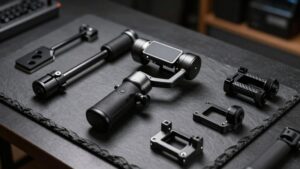
Wireless audio gear can fit an iPhone gimbal, but only if the receiver, transmitter, and mounts clear the clamp and motor arms throughout the phone’s full tilt range. Check receiver and mounts at extreme angles; a setup that clears upright may strike the gimbal when you tilt down.
Clip-on transmitters mustn’t press against the case or lens, and they can’t block Lightning or USB-C access. Thick MagSafe rings, bulky mounts, or raised rails can prevent balance or add vibration.
Secure the receiver with a small plate that won’t drift during pans, away from camera cutouts. Do full sweep while recording: pan left and right, then tilt up and down. Check that gear doesn’t touch the gimbal, trigger screen or gesture sensors, or cover iPhone microphones.
Battery Life and Runtime
After confirming your audio gear clears the gimbal, consider how long the setup can run: motor workload largely determines battery life.
Most iPhone gimbals use brushless motors and a control board, so you can often expect several hours per charge. Continuous face or object tracking, gesture control, and rapid framing corrections shorten runtime because processing and motor activity persist.
FPV (free pan) and fast follow moves also draw more power than gentler Follow or locked modes.
Your runtime depends on reframing, not just advertised capacity—in practice. Before filming, balance your phone carefully so motors need less correction; switch the gimbal off during breaks rather than leaving it on. For long shoots, choose calmer moves and reserve tracking for moments that need it.
Payload and Phone Compatibility
Before choosing a gimbal, check its payload rating and whether its clamp fits your exact iPhone model. Your phone’s dimensions vary by generation, and a secure clamp must keep it centered for balanced three-axis movement. Unlike Action Mode, a gimbal needs a balanced mounted load. Check:
- Payload: a Hohem iSteady V3 Ultra supports about 400 g, leaving room for a thicker case or clip-on lens.
- Fit: confirm your model and case sit firmly in the clamp; looseness risks slipping, while excess bulk can obstruct tilt or roll.
- Headroom: added lens weight shouldn’t exceed capacity, cause drift, or reduce tracking smoothness.
Mount your setup, balance it before powering on, then open the app.
Compatibility means more than physical fit: poor equilibrium can undermine stabilization.
Creator-Specific Use Cases
Once your iPhone balances securely, the right choice depends on how you film: a 3-axis gimbal can smooth walking shots and turns that Action Mode may leave shaky, track a subject as you move around a desk, and create controlled reveal pans. For a solo 4K vlogger crossing markets or hiking trails, motorized axes reduce micro-shakes through pans and turns.
- For reviews, use AI face/object tracking to keep your subject centered as you circle a desk; Action Mode won’t lock on as reliably.
- For travel reveals, guide a smooth top-down-to-horizon pan with Follow or Pan motion; phone stabilization can look uniform.
- For Reels or long takes, a gimbal supports repeatable vertical or landscape framing, eases hand fatigue, and cuts shaky footage.
Conclusion
You don’t need a gimbal for every iPhone video. Action Mode keeps setup simple and works well for bright, fast-moving clips, but it can crop your frame and struggle in low light.
A gimbal gives you smoother, more controlled movement, with extra setup, charging, and compatibility to take into account. Choose Action Mode for quick walks and spontaneous shots; choose a gimbal when you need polished motion, longer runtime, or reliable results across varied scenes. For many creators, the right choice depends on the shot, not the gear.