Is a Phone Gimbal Worth It? Who Gains the Most From One
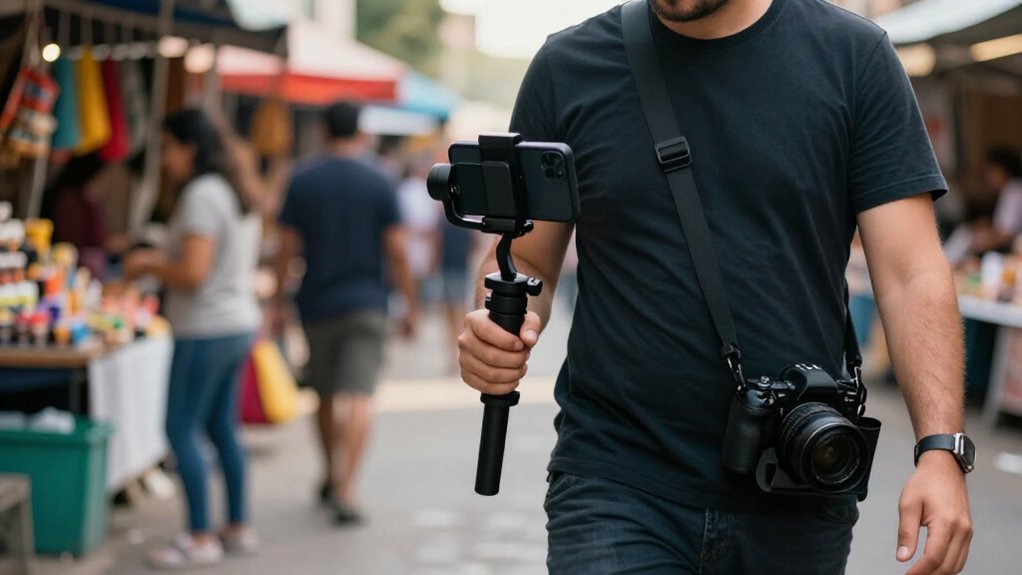
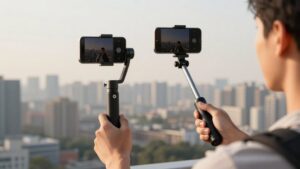
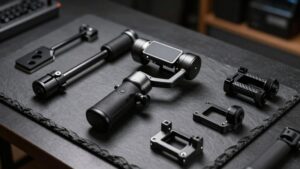
A phone gimbal is worth it if you regularly film while walking, track moving subjects, or record hands-free clips.
Its three-axis motors reduce small shakes, steady framing through longer takes, and help with smooth pans.
You may gain less if you mostly shoot stationary footage.
Tracking, tripod convenience, and remote controls can simplify solo videos, but features may depend on app and phone compatibility.
Check case fit and weight limits.
More factors can guide you.
Steadier Walking Footage
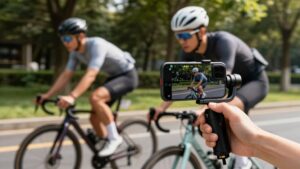
When you walk, a 3-axis phone gimbal like the Zhiyun Smooth Q4 counteracts small shakes and keeps your phone level as your body shifts, reducing the wobble that can build during a longer take. That stabilization can make walking footage look smoother than handheld video even when your stride changes. The gimbal also levels your phone as you lean forward, backward, or side-to-side, helping prevent uneven motion from accumulating across a take.
Subject-driven modes help keep framing steadier as you and your subject move. These controls reduce the need to correct your grip. One-tap return to center and portrait-or-landscape controls help you restore framing mid-walk. Gimbal smoothing also supports steadier pans and sweeps than your arm alone, so clips feel more consistently watchable.
Audience and Shooting Habits
A phone gimbal is most useful if you regularly shoot walking videos, vlogs, or reels, where it can smooth movement that would look jittery handheld. You’ll see less value if most of your clips are stationary, since little movement leaves less shake to correct. The strongest case comes when you often make slow pans or tilts, orbit a subject, or track a scene smoothly from side to side; a gimbal can repeat those moves more consistently than your hands.
If you already shoot drone footage, it can also give you a similar smooth, ground-level look for social stories when flying isn’t practical. For long events, travel days, or school sports, its support can reduce arm fatigue while you film. Consider how often you’ll use these moving shots: occasional use may not justify the extra gear, but regular use can make the cost worthwhile for your regular needs and budget.
Subject Tracking and Remote Controls
If you want to film yourself while moving, subject tracking can keep you centered without requiring someone to operate the phone. A gimbal’s app uses computer vision to lock onto a person or object, keeping your framing steady as you walk, pan, or move. Flow 2 Pro’s Deep Track 4.0 can reacquire a subject after a brief obstruction.
| Feature | What you get |
|---|---|
| Tracking | Reacquisition after brief blockage |
| Controls | App selection, physical start/stop |
Flow 2 Pro’s touch selection lets you drag over the live view; controls start, stop, and change orientation. Its optional AI Tracker improves tracking in non-Insta360 apps and adds an adjustable LED. DockKit supports the iPhone camera app and apps on iOS 17+, but others may lack a tracking indicator. Check compatibility and accessory cost before buying.
Built-in Tripod Convenience
A built-in tripod lets you set your gimbal down quickly for hands-free self-recording or group shots. It keeps your phone steady for time-lapses and panoramas, without requiring a separate mini-tripod.
With fewer accessories to carry and set up, you get a more compact all-in-one kit.
Quick Hands-Free Setup
When you need steady footage without holding the gimbal, its built-in mini tripod lets you set it on a flat surface and start recording hands-free.
You don’t need a separate stand or time to balance the device. With your phone mounted, the gimbal stays level as you capture a group clip or quick self-shot. Set it on a desk or ledge, then pick it up when you move.
That makes switching between walking and stationary scenes easier, especially in tight spaces or low-angle setups where holding the gimbal feels awkward. Some models, including the Insta360 Flow 2 Pro, combine the tripod with a 1,100 mAh battery for longer sessions. Battery life still varies with phone, settings, and how often you record during each session.
Stable Self-Recording
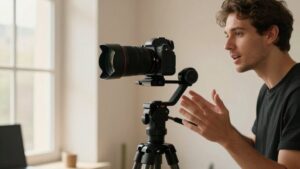
For steadier self-recording, set your phone gimbal on its built-in mini tripod and step out of the shot setup without holding it. That set-and-forget placement helps when you’re filming a tutorial, a workout, or a short presentation alone. The gimbal’s motors keep your phone level, while a tracking or follow mode can keep you centered as you move within the frame.
You can also use an extended handle, such as the selfie-stick-style design on the Zhiyun Smooth Q4, to adjust framing before you start recording.
You’ll also reduce hand fatigue on longer takes and limit the shake that handheld filming can introduce. Use a firm, level surface, and check the gimbal’s range before moving. It’s practical when you often record alone for longer stretches.
Group Shots Made Easier
With a built-in tripod, you can set a phone gimbal such as the Insta360 Flow 2 Pro down for a group shot without carrying a separate stand.
It gives you a place to frame everyone before the timer starts. The gimbal’s 3-axis stabilization can keep pans and tilts smooth when you record a clip, while its level framing helps your group stay posed instead of relying on someone to hold the phone. For a self-timer setup, place it at eye height and use tracking or follow modes to keep faces centered.
That can make repeat shots at different locations easier, particularly if your model or bundle includes a mini tripod accessory. Check that the surface is steady and leave room for everyone in frame.
Compact All-in-One Design
Set up a phone gimbal’s built-in mini tripod on a flat surface for hands-free group photos, interviews, or static time-lapses. That compact support lets you frame a shot without holding your phone or packing a separate stand.
With the gimbal’s three-axis stabilization, your footage can stay level while the device rests, helping keep static clips consistent.
For quick scenes such as arranging a composition, recording an interview, or capturing a time-lapse, you can start sooner and carry less gear. On models such as the Insta360 Flow 2 Pro, the built-in tripod supports a compact all-in-one setup. It can also simplify switchovers: reposition the gimbal between angles, then resume recording with smooth results.
You still need a stable, flat surface, and a tripod won’t replace handheld movement when you’re filming on the go. That matters when your shot needs a fixed viewpoint.
Native Camera App Limitations
Your phone’s camera app may offer limited tracking and manual controls, and its stabilization can’t match a gimbal’s three-axis movement. You may also encounter compatibility gaps between your phone, app, and gimbal.
Dedicated gimbal apps can add recording options such as motion timelapses and guided tracking that native apps often lack.
Limited Tracking Features
If you rely on your phone’s default camera app, check whether a gimbal can track subjects in it: many gimbals reserve reliable follow tracking for their own apps.
On the Insta360 Flow 2 Pro, DockKit enables tracking in Apple’s iPhone camera app with iOS 17 or later, but other native camera apps may not offer a selectable subject. Using non-Insta360 apps may require the optional AI Tracker; the gimbal alone may not deliver the same follow behavior.
Test tracking in your usual lighting and movement conditions, too: if you turn behind an obstacle, the gimbal may take time to reacquire you. If you usually open the native app and shoot, choose a model with broader integration or expect to guide the gimbal yourself.
Restricted Manual Controls
A phone gimbal can stabilize footage in your native camera app while limiting how much you control from that screen. You may be able to start or stop recording with the gimbal’s buttons, yet rely on its companion app for smoothing settings, tracking, or automated moves. If you prefer your camera app’s manual focus and exposure controls, you might keep using it, but lose access to some gimbal-specific automation.
Certain modes require physical switches or change how the gimbal responds; Free Tilt, for example, can trade left-right panning for up-down tilt. That can constrain composition when you’re framing a shot by hand. Before buying, check which controls work in your shooting setup. You’ll get the most from the native app when stabilization is enough.
App Compatibility Gaps
Check which features work in your preferred camera app: many gimbals save their best tracking and automated modes for a companion app. Your phone’s native camera may still use basic pan and tilt stabilization, but tracking or guided movements might be limited or unavailable.
Some models offer integrations. The Insta360 Flow 2 Pro supports tracking outside its app through Apple DockKit, but you need iOS 17 or later. Without DockKit, tracking generally stays within Insta360’s app. Insta360’s AI Tracker accessory can add tracking support in other apps, showing that native-app performance may require extra hardware.
Before buying, check compatibility for your specific phone, operating system, gimbal firmware, and camera app. These requirements can change with updates, so confirm which features work in your setup rather than assuming every mode carries over.
Missing Advanced Recording Options
A phone gimbal can smooth your footage, but it won’t automatically add pro recording controls to your native camera app. Your filming options still depend on that app’s support for exposure control, codec choices, and frame rates.
Some gimbal features, including motion or panning timelapse and smart tracking, may require the companion app, so you’ll need to switch workflows. That can matter if you want a repeatable move, such as a multi-waypoint or 180-, 270-, or 360-degree timelapse.
Tracking also depends on subject detection; poor lighting or fast movement may disrupt it, and reliable reacquisition may require the gimbal software.
A gimbal is still useful for smoother movement and automated shots, but it won’t replace advanced controls your phone’s camera app may already offer.
Phone Case Clearance
Before choosing a phone gimbal, measure your phone with its case on and compare the width with the model’s limits; the Insta360 Flow 2 Pro, for example, supports phones about 50–90 mm wide. Width isn’t the only concern: raised lens rings, thick bumpers, grips, straps, or protrusions can prevent a secure clamp fit or interfere with moving axes and side buttons.
Check the mount’s shape and clearance needs, not just its phone range. Cases may block charging or data ports, remotes, or magnetic attachments, depending on the design. Extra case weight or a shifted center of gravity can also hurt balance and smoothness.
You may need to remove the case or choose a slimmer one, so test the fit before buying when you can and confirm compatibility.
Battery Wear Over Time
Over time, a phone gimbal’s rechargeable battery loses capacity with repeated use, sometimes noticeably within a couple of years. That decline reflects normal wear in the lithium-ion cells, but how you charge and use the device can affect its pace. Frequent full charges, or leaving the gimbal fully charged for long periods, can speed capacity loss; partial charge ranges may help preserve it.
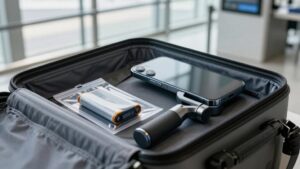
Heat also matters: charging or filming in direct sun can age the battery faster. As runtime falls, the motors may still work, yet low-battery cutoffs arrive sooner, limiting continuous shoots and making the gimbal less useful. To slow wear, update firmware when available, and store the gimbal cool and dry at about half charge if you won’t use it for weeks.
Overlooked Weight Limits
Even when a phone gimbal appears compatible, its weight and size limits can affect performance.
Your phone may fit the clamp yet exceed the gimbal’s supported width or weight. For example, DJI’s Osmo Mobile 8 supports phones up to about 3.2 inches wide. Added case, MagSafe battery, or accessory weight can strain the motors, leading to noise, drift, or slower corrections. Check the manufacturer’s limits and consider the complete setup, not just your handset.
- Watch for lag during tracking or quick pans; overloaded motors may not keep up.
- Aim for the middle of the stated phone-weight range, since near-limit setups can perform less reliably.
- Balance your phone carefully; poor balance makes the motors fight gravity and can often reduce smoothness while walking or turning.
Gesture Controls for Selfies
Once your phone balances within the gimbal’s limits, gesture controls can make solo selfies easier to start and frame.
They let you trigger actions hands-free with a raised hand or another simple movement, reducing framing errors while you move. Some Zhiyun Smooth models combine smart gesture concepts with app features, but recognition isn’t guaranteed.
- Keep your face and phone well-lit; avoid strongly patterned backgrounds that may confuse the sensors.
- Test a short walk-and-turn before recording to see how quickly gestures register and how the gimbal responds when you’re close.
- If recognition proves unreliable, use app buttons or a controller, when available, to start or stop recording and recenter your phone.
Gestures add convenience, but dependable controls help you capture the moment without repeated takes.
Conclusion
A phone gimbal is worth it when you regularly film while walking, follow moving subjects, or create solo videos. It can smooth footage, track you, and simplify framing, while built-in tripod and gesture controls add flexibility.
But you may not need one for casual clips or a phone with strong stabilization. Check app support, case clearance, weight limits, and battery upkeep before buying. If you shoot often and value polished motion, it’s a practical upgrade.