Phone Gimbal Modes Explained: Pan Follow, Lock, FPV and More
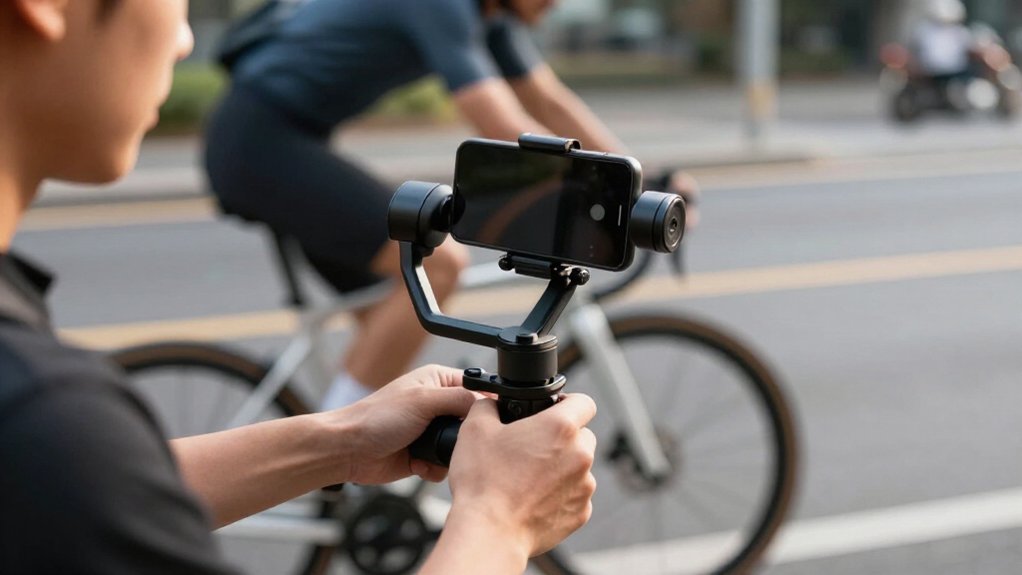
Your phone gimbal’s mode controls which axes follow your hand and which stay stabilized.
Use Pan Follow (PF) for smooth horizontal sweeps with tilt and roll held steady; choose Lock to keep framing fixed.
Auto adjusts tracking for movement, while FPV follows pan, tilt, and roll for an immersive view.
For faster response without changing modes, press and release the trigger, then hold it again to enable Active Plus.
The guide below covers setup and mode choices.
Choosing a Gimbal Mode
Choose a mode based on how you want the gimbal to respond: Auto is the default after boot and adjusts pitch and pan tracking to suit whether you’re stationary or running.
Use Pan Follow (PF) for smooth panning while the frame stays level and stable. Choose Lock when you need a fixed, consistent composition for static shots. Select FPV when you want the camera to mirror your handle’s twists for an immersive perspective; you can control roll with the Zoom Wheel.
If a scene moves, enable Active Plus: press and release the trigger, then press and hold it again. This increases responsiveness within your selected mode, so you can react faster without changing your approach. Match the mode to your subject and movement before recording.
Pan, Tilt, and Roll
Each gimbal axis controls a different kind of camera movement: pan sets left, right framing, tilt adjusts the up, down angle, and roll controls rotation around the lens axis to keep the horizon level. When you move the handle, the selected mode determines which axes respond. In FPV, all three follow; in Lock, none do, so screen direction stays unchanged.
| Axis | Movement | Mode behavior |
|---|---|---|
| Pan | Left, right framing | Follows in PF; fixed in Lock |
| Tilt | Up, down angle | Follows in Auto and Follow; not PF |
| Roll | Lens-axis leveling | Stable in Auto, Follow, and PF |
| FPV | All axes | Pan, tilt, and roll follow the handle |
Use these distinctions to predict whether a turn changes framing, elevation, horizon, or the phone’s screen direction before you start recording.
Pan Follow (PF) Mode
In PF mode, the pan axis follows your handle’s horizontal movement, while pitch and roll remain stabilized. Use it to track subjects or reveal a changing view with smooth horizontal pans and a locked tilt.
When walking, keep your movements controlled to reduce unwanted camera motion and maintain steady footage.
How Pan Follow Works
When you move the handle side to side in Pan Follow (PF) mode, the phone follows on the pan axis while the tilt and roll axes stay fixed. The gimbal responds to your left-to-right handle motion by rotating the phone horizontally. It doesn’t copy upward, downward, or twisting movements: pitch and roll remain stabilized at their set positions.
This separation lets you sweep across a scene while keeping the frame level, even as a subject moves through the shot. Use PF for a surround shot when you want to follow a subject or reveal surroundings without adding unwanted tilt or roll.
You can also pan between views to create a scene passage; fixed pitch and roll help prevent framing drift as the camera changes direction.
Smooth Horizontal Tracking
For smooth horizontal tracking, Pan Follow (PF) mode turns the phone with your handle’s side-to-side movement while keeping tilt and roll locked.
Move the handle steadily across the scene, and the pan axis follows that motion so you can track a subject without unwanted vertical drift. Keep your pace even for a controlled sweep. Use PF for panning follow shots, surround-style views, or action sequences that call for consistent sideways tracking.
It also works well when you reveal a landscape or create a clean shift between scenes. Plan your route, then move steadily to keep your subject framed throughout the take. Then guide the gimbal through the movement rather than twisting your wrist sharply. Review the take and adjust your speed to match the subject.
Tilt Axis Locked
Pan Follow (PF) mode locks tilt and roll while letting the pan axis respond to your horizontal handle movement. Your phone consequently holds its tilt angle and horizon steady as you rotate the handle left or right. In PF mode, the gimbal drives smooth horizontal panning by following that movement on the pan axis.
Because pitch doesn’t follow your hand, you can change the viewing direction without introducing unwanted vertical motion or roll. Keep your grip controlled and move the handle gradually; the stabilizer will translate your input into a measured pan while maintaining the locked tilt and roll. This separation of axis movement helps preserve a consistent frame and stable horizon throughout the rotation.
Make deliberate tilt corrections separately when you need them.
Ideal Shooting Scenarios
Use Pan Follow (PF) mode for smooth left-to-right pans and lateral subject tracking, such as following someone walking across the frame. PF responds only to horizontal handle movement, while the tilt and roll axes stay locked. You can track a subject sideways without changing camera elevation or tilting the horizon, reducing unwanted wobble.
Choose PF for panning follow shots or surround-style shots when you need consistent subject framing as you rotate around them. It also suits seamless scene transitions: change the camera’s direction smoothly while keeping pitch and roll stable for a professional-looking result.
For a controlled unveiling move, use PF to reveal a vista without tilt or roll drift. Keep your handle movement horizontal and deliberate; the locked axes preserve the composition as the pan progresses.
Walking With PF
Walking with Pan Follow (PF) mode keeps the tilt and roll axes locked while the pan axis follows your handle’s horizontal movement.
As you walk, this separation limits pitch and roll shake from your steps, helping you maintain a level horizon. The phone still tracks left-to-right handle swings, so you can follow a subject moving across your field of view without tilting the camera.
Use PF for a panning follow or surround-style shot when horizontal tracking matters more than changing the camera’s tilt. If uneven steps create vertical bobbing, switch from a more responsive mode back to PF; its locked axes reduce the movement transferred to the phone.
Keep in mind that PF stabilizes tilt and roll, but it allows pan movement.
Camera Movement Tips
When you need smooth side-to-side movement, set your gimbal to Pan Follow (PF): the pan axis follows your handle horizontally while tilt and roll stay locked, keeping the framing steady for action shots and panning follows.
Use PF for clean left-to-right pans and panning follows when you need to track a subject without vertical drift. Keep your handle level and rotate it smoothly across the scene; avoid abrupt starts or stops that can disturb motion.
For surround or reveal-style shots, guide the camera around your subject with a controlled horizontal arc, preserving tilt and roll. You can create seamless scene-to-scene transitions by moving horizontally while maintaining consistent framing. When tracking only side-to-side movement, PF gives cleaner results than Follow (F) because it ignores vertical hand changes.
Switching To PF
Once selected, PF follows the handle’s pan axis, moving your phone horizontally as you turn. It keeps pitch and roll behavior fixed, so upward or downward tilts and roll changes in your hand don’t alter the phone’s framing. Use PF for smooth left-to-right pans, follow shots, or surround footage when you want seamless side-to-side motion and stable composition.
If a scene calls for a quicker response, enable Active Plus without changing your selected PF mode. Confirm PF on the panel before recording, then guide the handle through the intended arc. Check framing in the live preview.
PF Mode Limitations
PF gives you smooth horizontal pans, but its locked tilt and roll axes limit how the phone responds to your hand. It follows your handle’s pan movement, while pitch and roll remain fixed. This separation keeps the horizon stable as you track a subject moving sideways, making PF useful for surround shots and left-to-right pans.
However, you can’t tilt the phone upward or downward, and the gimbal won’t respond when you rotate the handle. Without tilt follow, PF may feel restrictive when you walk or run after a subject that moves through changing elevations or needs depth from combined pan and tilt tracking. For more responsive framing, switch to PTF, which follows pan and tilt while fixing roll, or FPV, which lets all axes follow your hand. Choose based on required movement; don’t expect PF to reproduce vertical or rolling camera motion during a take.
Selfie Mode Framing Tips
Enable Selfie Mode, then center yourself in the frame and check that the background has enough space around you. Adjust the gimbal’s height and keep your grip consistent to reduce unwanted reframing. Preview the shot before recording to confirm your framing and horizon are level.
Center Yourself in Frame
In Selfie mode, the camera faces you while the gimbal’s stabilization hardware steadies footage as you move. To center yourself, hold the handle at arm’s length and place your face centered in preview. Use Pan Follow (PF) for smooth left-right alignment; it follows your horizontal turns while keeping tilt and roll stable.
Move the handle more slowly than your normal walking pace, since abrupt changes can pull your face off-center or overwhelm stabilization.
If your face shifts vertically, select a mode that follows pitch so the phone tracks the handle’s tilt and stays level on your face as you move. For consistent composition while changing your body position, choose Lock mode. Keep the phone’s direction fixed, and reposition yourself rather than twisting the gimbal.
Check Background Space
Once your face is centered, check the space behind the phone, which appears as the background in Selfie mode. In this mode, the phone faces you, so the area in front of you fills the frame. Inspect that space for clutter and bright sources such as windows, screens, or streetlights; these can create glare or trigger exposure shifts. Step back slightly and confirm your headroom and shoulder width fit without tight cropping.
Selfie perspective compresses distances, so a nearby background can feel crowded.
For a repeatable composition, use Lock mode as a reference. Lock the axes and establish suitable background space before switching to Selfie. Then adjust your stance while keeping the background consistent. Keep your torso centered as you hold the gimbal steady.
Adjust Camera Height
Raise or lower the gimbal handle to adjust camera height smoothly in Selfie mode, which turns the phone toward you while its anti-shake hardware helps steady the shot. Move the handle vertically in controlled increments; the phone’s framing will rise or fall without unwanted pan or tilt swings.
For a flattering angle, lift it slightly above eye level, then make small height corrections so your face and background sit near the center. Keep your left-right movement restrained: sudden handle jerks can shift composition even when stabilization keeps the image steady. Manual Lock can hold the chosen pan or tilt position and reduce drift between takes. Check that your face remains centered as you move vertically.
Preview Before Recording
After setting the camera height, preview your framing at the exact distance and posture you’ll use while recording.
In Selfie Mode, the phone faces you, while gimbal stabilization helps maintain composition as you walk, turn, or reposition. Stand where you want to appear, then raise or lower the handle to set tilt before filming. Run a dry test: rotate your torso slowly, then pause.
Confirm you stay comfortably framed and avoid top or bottom cropping. If landmarks behind you must remain consistent, switch temporarily to Lock mode after framing; return to Selfie Mode to record. This mode keeps the lens aimed toward you, not a fixed background direction, so verify the background before choosing it. Recheck framing after any handle adjustment or change in stance before you roll.
Tracking a Moving Subject
When tracking a moving subject, choose the mode to match its motion: Pan Follow (PF) pans smoothly left to right while locking tilt and roll, while Follow (F) responds more sensitively and follows your handle on the pan and pitch axes.
For immersive tracking, switch to FPV: pan, pitch, and roll follow your handle, so a wrist twist matches the camera’s viewpoint. Lock mode keeps framing consistent as your subject crosses the scene. It prevents the phone from following gimbal rotation, preserving screen direction as you reposition the handle.
For fast action, enable Active Plus: short-press the trigger, release it, then hold it again. The gimbal responds more quickly to your handle movements, helping you keep pace with the subject without changing your chosen mode.
Avoiding Motor Overload
To avoid motor overload, choose a mode that limits unnecessary corrections: use Lock for a fixed frame or Pan Follow (PF) for smooth horizontal pans, with tilt and roll locked. Lock fixes all three axes, preventing motor corrections for unintended hand movement.
In PF, keep your movements horizontal; the locked tilt and roll reduce needless pitch and roll adjustments. In Auto, let stabilization work: pitch and pan follow the handle, while roll stays fixed. Don’t force large roll changes, which demand extra motor effort.
Reserve Active Plus for genuinely fast scenes; its quicker response increases workload, so leave it off for slow or static shots. Use FPV only for deliberate twist-and-turn footage: all three axes follow your handle, creating the highest, most continuous motor demand.
Portrait Mode Setup
For vertical content, switch to Portrait mode from the gimbal’s additional function list to support stable 9:16 framing and reduce sudden reframing. This mode optimizes the gimbal for vertical capture, helping you maintain tilt stability and smooth framing during events, portrait posts, and live streams.
- Select Portrait mode before recording so the phone stays correctly oriented as you move.
- Use it for vertical events or social clips when consistent tilt behavior matters.
- For a fixed portrait composition, combine Portrait mode with Lock mode to keep the phone in the same screen direction.
- Check the preview after switching; confirm the subject fits the 9:16 frame before you begin.
Portrait mode complements vertical workflows by prioritizing steadiness, so you’ll get reliable framing without correcting orientation mid-take consistently.
Conclusion
Choose your phone gimbal mode based on how you want the camera to move: use Pan Follow for smooth horizontal turns, Lock to hold a fixed direction, and FPV to follow your phone’s tilt and roll.
Before filming, balance your phone, select portrait or landscape orientation, and frame your subject. For tracking, keep the subject within the app’s target area. Move steadily, and reduce abrupt turns to prevent motor strain.
If the gimbal vibrates or warns of overload, rebalance it and check that your phone fits its payload limits.
Phone Gimbal Fit Checker
Check if your phone, case and lens fit a gimbal: compares width, thickness and total weight against the clamp range and rated payload.
Gimbal Stabilizer App Finder
Find the official companion app for your gimbal by brand, model, phone OS and feature, with exact publisher names and official download links.