Pocket Gimbal Camera vs Phone Gimbal: Which Gets You Smoother Footage?
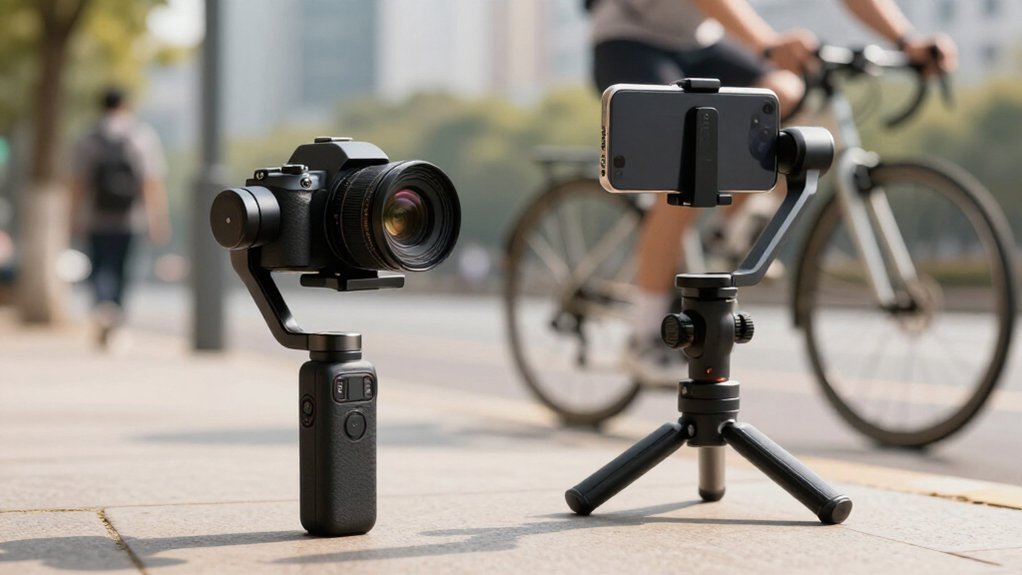
For steadier horizons during fast moves, you’ll usually get smoother, more consistent footage from a pocket gimbal camera. Its three-axis motors correct roll while stabilizing the built-in lens, so you avoid phone-balance shifts and some digital crop or reframing.
A phone gimbal still works well for everyday walking shots and can benefit from your phone’s image processing and microphones. Test acceleration and edge lines; the next trade-offs include low-light detail, audio, setup, and sharing workflow.
Horizon Lock and Reframing
When you tilt or turn a rig, horizon lock keeps the horizon level by using three motorized axes to correct roll in real time. On a walking pan, compare how each rig holds composition as your movement accelerates.
Pocket/camera gimbals typically resist larger, faster rolls more consistently; phone gimbals may reframe when digital stabilization compensates or a mode limits an axis. That crop can shift your original framing.
| Rig | Strong move | Framing |
|---|---|---|
| Pocket/camera | Real-time roll correction | Usually steady |
| Phone | Software may assist | Can shift |
| Walking pan | Test faster turns | Watch edges |
| Wide mode | Axis limits possible | Check composition |
For footage, repeat a walk and pan with both rigs, then inspect the horizon and frame edges. If you prioritize level lines and fewer jumps, choose the pocket/camera gimbal for demanding moves. Keep turns controlled with either rig; extreme motion can still expose limits.
Built-In Camera Versus Phone Mount
Horizon lock shows how each rig handles movement; the mounting design also affects setup and consistency.
With a pocket gimbal camera, the gimbal surrounds its built-in camera, keeping stabilization mechanically aligned with the lens. You can start recording without mounting or calibrating a phone, and the fixed camera-to-gimbal relationship keeps framing consistent as you walk and talk.
A phone gimbal holds your smartphone, so its optics and balance affect what the motors can smooth. Slide the clamp, extend the selfie stick, or switch modes, and alignment shifts may change framing or smoothness. NFC speeds setup, but you must balance the phone. The rig relies on phone output and correction; a pocket camera delivers a stabilized feed from its system.
When walking often, this setup removes variables.
Low-Light Image Quality
In low light, a pocket gimbal camera can hold detail with less blur because its mechanically stabilized sensor lets you use slower shutter speeds.
With a phone gimbal, software stabilization may push ISO higher to maintain exposure, adding noise. Even on a stabilized handle, micro-wobble can soften fine edges during exposure, while digital correction may crop or reframe the image and reduce usable resolution.
A pocket camera’s steadier frame limits jitter and smear, so you’re more likely to retain crisp texture without aggressive processing. Check signs, faces, and pavement detail at 100% playback rather than judging only the preview. Add light when you can: an optional adjustable-color-temperature tracker LED can help a phone, but the pocket camera often delivers cleaner night footage without extra illumination.
On-Device Editing and Export
A pocket gimbal camera can let you trim clips and export them from its built-in screen or app, so you can share finished footage without moving it to a laptop. That workflow suits quick turnaround: you can review a take, trim its ends, and save a shareable file before packing up.
Pocket cameras often record stabilization into the footage, so export may avoid the extra phone processing, cropping, or waiting that some edits require.
With a phone gimbal, you typically finish and export in the phone app, making speed and edit quality depend on your phone’s performance and software. If you need to correct a shot before saving, app-based fixes add another step; a pocket camera’s own pipeline can keep capture and export together.
Choose based on where you want to edit: use the pocket camera for ready-to-share output, or your phone when you prefer its editing tools.
App Control and Tracking
Tracking feels more consistent when the camera and gimbal share one control system: a pocket gimbal camera handles subject selection and framing through its own camera and app, while a phone gimbal depends on the phone app’s live view and compatibility. With a pocket model, you select the subject in app, then check whether it holds framing as you move.
Flow 2 Pro’s Deep Track 4.0 can reacquire after brief occlusion, even when your subject ducks behind an obstacle. Phone gimbals add app-dependent steps: DockKit can track in Apple Camera and some iOS apps; on Android or iOS setups, you may need AI Tracker. Test modes: regular mode favors left-right motion but limits vertical travel; Free Tilt expands up-down range, yet reduces pan control.
Battery Life on Trips
Once tracking is set, check whether the gimbal can last through your walking day and keep your phone charged.
A phone gimbal such as Insta360 Flow 2 Pro pairs a 1,100 mAh battery with all-day trip recording and USB-C phone charging. By comparison, Zhiyun Smooth Q4’s 3,300 mAh cell is rated for about 15 hours, though settings change real runtime. Plan around the load you actually use:
- Charge both devices before departure; don’t start the day low.
- Active tracking can drain power faster, especially during continuous walking.
- Extended selfie-stick use adds operating time and raises battery demand.
- Switch off fill lights, including Flow 2 Pro’s AI Tracker LED when practical.
- For multiday trips, use lower-power modes and USB-C charging to avoid carrying extra accessories.
Pocket Cameras Struggle With Audio
Even when a pocket gimbal camera like the DJI Pocket 3 keeps video steady, its small built-in mics can struggle to capture clear dialogue in traffic or crowds. Because the mic sits close to the compact body, walking can bring wind, traffic, and crowd noise forward; side-to-side moves may also transmit grip or gimbal mechanism sounds.
That can leave voices muffled or too quiet, even when stabilization looks polished. With a phone gimbal, you can often use the phone’s audio pipeline or connect a compatible wired or wireless mic, giving you more control over speech clarity. Smooth footage alone doesn’t guarantee professional content; if you can’t hear dialogue clearly, the steadiness won’t rescue the scene. Check levels before recording, especially outdoors in gusty weather.
Storage and File Management
A pocket gimbal camera saves clips to internal storage or microSD, so you’ll manage fewer files but may need to offload them during a trip. A phone gimbal records to your phone, where available space, app folders, and export paths determine what you can keep shooting and find later.
Transfer footage daily to a laptop or cloud, then label folders by date and location to keep both workflows organized.
On-Device Storage
When you record stabilized clips, a pocket gimbal camera saves them to onboard flash or removable media, while a phone gimbal uses your iPhone or Android storage, and sometimes app-side cache. For a long shoot, check capacity before framing; the camera keeps media in one dedicated location, but you may need to offload frequently.
- Pocket camera: onboard flash or bundled SSD/microSD can extend recording.
- Phone gimbal: monitor free iPhone/Android space and app cache.
- Tight capacity limits phone clips sooner; removable media adds room.
- Device-side organization keeps pocket-camera footage together.
- Phone files may sit in albums, app folders, or processing paths.
A phone gimbal’s extension can keep you filming longer, so estimate clip size and space before a session; each setup benefits from a capacity check.
File Transfer Workflows
After a shoot, a phone gimbal usually requires you to move clips from your phone’s gallery to a laptop, while a pocket gimbal camera lets you copy files directly from internal storage or a microSD card. For phone capture, connect by USB-C when you need a reliable, faster transfer; Wi‑Fi can work, but app exports may add delays. Create a folder such as `YYYY-MM-DD_GimbalPhone/`, then move originals off your phone to free space.
With a pocket camera, pull the microSD card and copy the batch through a reader, or transfer from internal storage. For either setup, use the same ingest routine each trip: import into your editor or media library, verify files open and sizes look, then archive them to an external drive. That repeatable check prevents missing clips.
Travel-Day Convenience
On travel day, you can fold the Flow 2 Pro into a small bag, tap your phone to connect, and start filming with less setup. Its built-in 8-inch-plus extension and phone-charging USB-C port reduce extra gear, while a pocket gimbal camera means carrying and charging a separate device.
For a lower-cost option, you can extend the Smooth Q4’s 8.5-inch selfie stick, but you won’t get the Flow’s 360° pan or travel-ready polish.
Pack-and-Go Portability
For travel days, the Insta360 Flow 2 Pro folds down for a pocket-friendly carry, then extends more than 8 inches as a selfie stick or opens its built-in tripod for a quick set-down shot. You get reach and a stable set-down option without packing a separate stick or tabletop stand; the folded body takes less bag space than a full-size rig.
- Flow 2 Pro suits tight carry-on pockets and day bags.
- Smooth Q4 adds an 8.5-inch stick, but packs bulkier.
- Its detachable-clamp convenience isn’t matched by Q4.
- iSteady V3-style designs combine extension, tripod, remote.
- Mechanical stabilization can mean fewer crop-heavy edits.
That can save minutes when you publish clips on the road; choose the slimmer Flow for packing, or prioritize remote control and reach.
Quick Setup on the Move
When a travel stop gives you only a moment to film, the Insta360 Flow 2 Pro pairs to your phone with a tap on its NFC logo, then guides first-time setup through in-app tutorials. Once connected, unfold it, mount your phone, and start tracking; the built-in tripod lets you set a stable frame quickly.
Its handle extends more than eight inches, so you can widen a walking shot or raise the camera without remounting. The Zhiyun Smooth Q4 offers similar adjustment with its roughly 8.5-inch extension, making it a practical lower-cost alternative. For a long day of stops, Flow 2 Pro’s 1,100 mAh battery is designed for all-day recording, and its USB-C port can top up your phone before your next quick travel-day clip.
Less Gear to Manage
A phone gimbal like the Insta360 Flow 2 Pro folds into a compact package, so you can carry it without the bulk or setup demands of a camera gimbal. You can tap your phone to its NFC point for a fast connection, then use the built-in tripod or selfie stick instead of packing separate supports.
For solo travel, that means less balancing, fewer mounts, and less friction when a scene appears.
- Folded body slips into a day bag or coat pocket.
- NFC pairing gets you filming with fewer steps.
- Built-in tripod supports hands-free solo shots.
- USB-C can recharge devices, easing charger worries.
- Compared with camera gimbals, you manage less gear.
For most travel creators, it’s the practical choice on busy days.
Pocket Camera Audio Limitations
Although a pocket gimbal camera like the DJI Pocket 3 can smooth walking footage better than a phone gimbal, its tiny built-in mic is easier to overwhelm with wind and handling noise.
When you walk, gusts and grip changes can mask speech, while the fixed mic may add muffled proximity artifacts. A phone gimbal uses your smartphone’s larger multi-mic system; apps can also support plug-in lav mics. Keep the phone steady and close to your body, then compare voice clarity in the same noisy spot.
For a pocket camera, an external mic often makes the biggest improvement to dialogue, but it adds setup. So you may get smoother motion from the pocket camera, yet a phone gimbal usually offers an easier route to clean vlog or interview audio.
Conclusion
Choose a pocket gimbal camera when you want a compact, ready-to-shoot setup with horizon lock, direct controls, and footage saved to dedicated storage. Pick a phone gimbal when you value your phone’s low-light processing, tracking apps, and quick editing and sharing.
In practice, neither guarantees smoother footage: balance, movement, and setup matter. Test both on your actual travel route, check audio and export options, and choose the workflow you’ll use consistently.
Light Stand Height & Payload Picker
Enter fixture and modifier weight, needed height and a safety margin to get the minimum light stand payload and height, plus matching stands.
Phone Tripod Height & Clamp-Fit Finder
Work out how tall your phone tripod must be and how wide its clamp must open, then see listed tripods that meet both.
Phone Gimbal Fit Checker
Check if your phone, case and lens fit a gimbal: compares width, thickness and total weight against the clamp range and rated payload.
Gimbal Stabilizer App Finder
Find the official companion app for your gimbal by brand, model, phone OS and feature, with exact publisher names and official download links.